
How to Set an Anti-Phishing Code on MEXC
1. What Is an Anti-Phishing Code?
An anti-phishing code is a personalized identifier that enhances your account security. The anti-phishing code is a custom string of characters that you can set yourself to help identify fake websites or emails impersonating MEXC.
Once your anti-phishing code is successfully set, all official emails sent by MEXC will display your unique code. If an email claiming to be from MEXC does not show your anti-phishing code, or if the code displayed does not match the one you set, the email is likely a phishing attempt. In such cases, please stay alert and avoid clicking any links or providing personal information.
2. How to Set Up an Anti-Phishing Code
2.1 Web
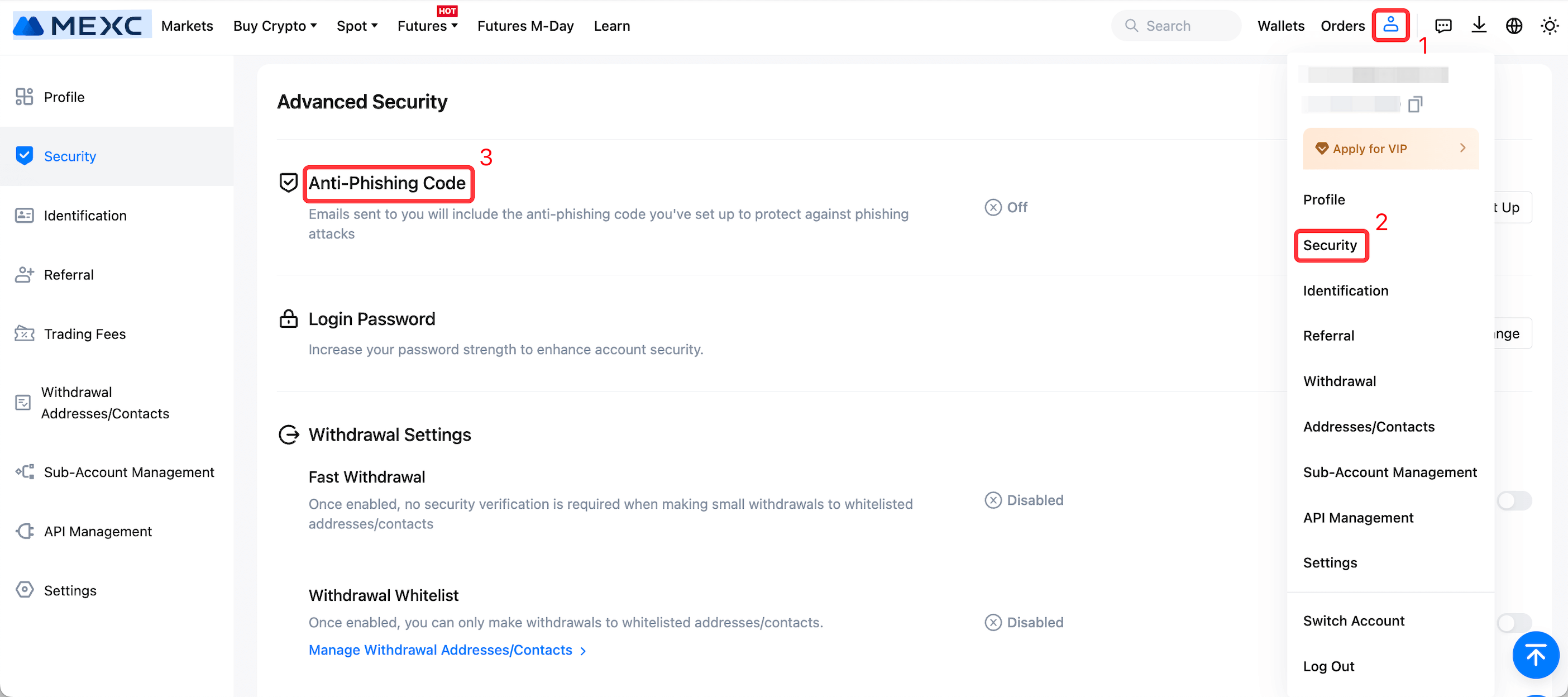
Go to the MEXC official website and log in to your account. Click your profile icon in the top-right corner and select Security.
On the Security page, scroll down to Advanced Security settings, find Anti-Phishing Code and click Set Up on the right to begin the setup process.
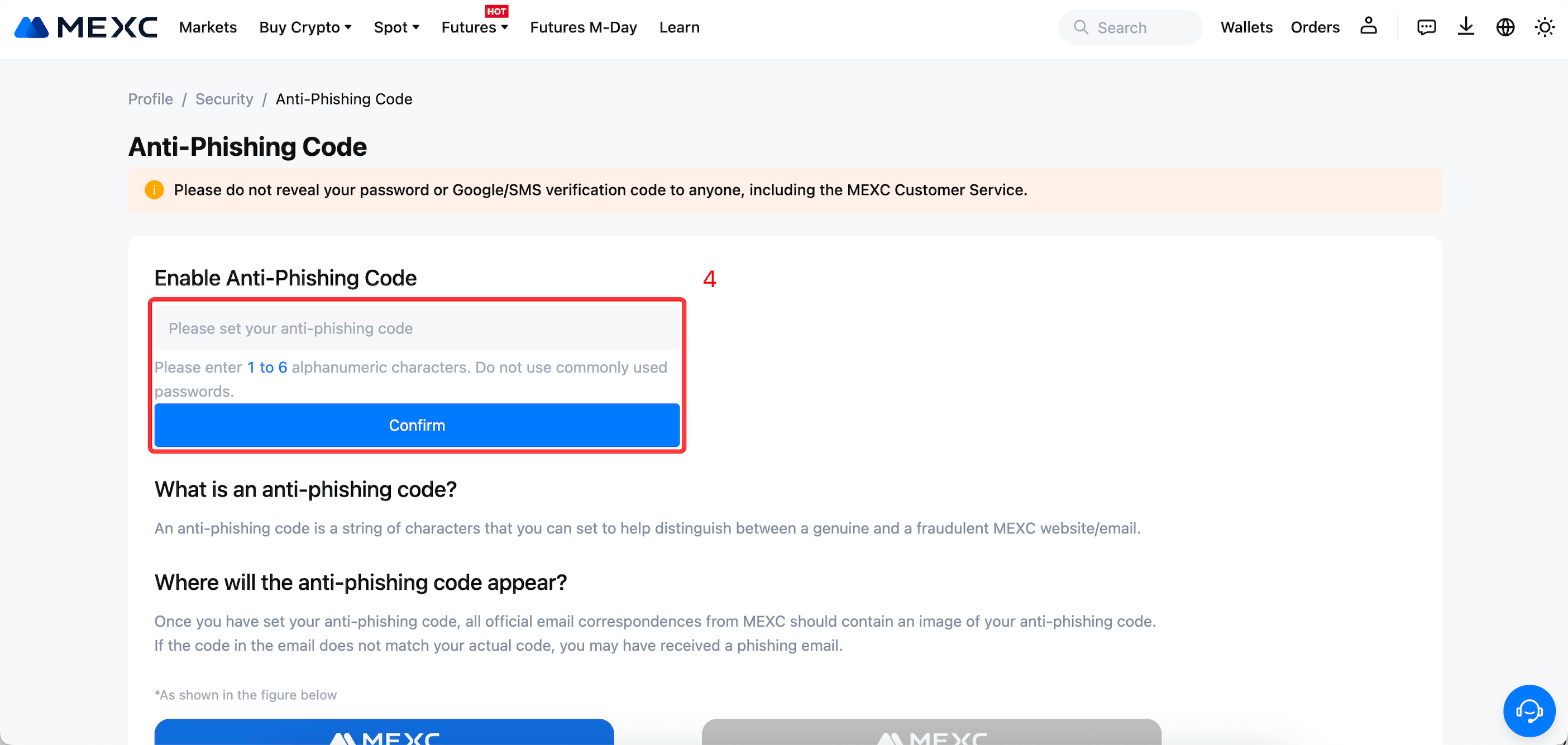
Enter 1 to 6 alphanumeric characters as your anti-phishing code, then click Confirm to complete the setup. Please avoid using any of your commonly used passwords as the anti-phishing code.
Below the anti-phishing code settings, an image will be displayed to illustrate where your code appears in MEXC emails. You can use this image to compare it with emails you receive for confirmation that the code is displayed correctly.
2.2 App
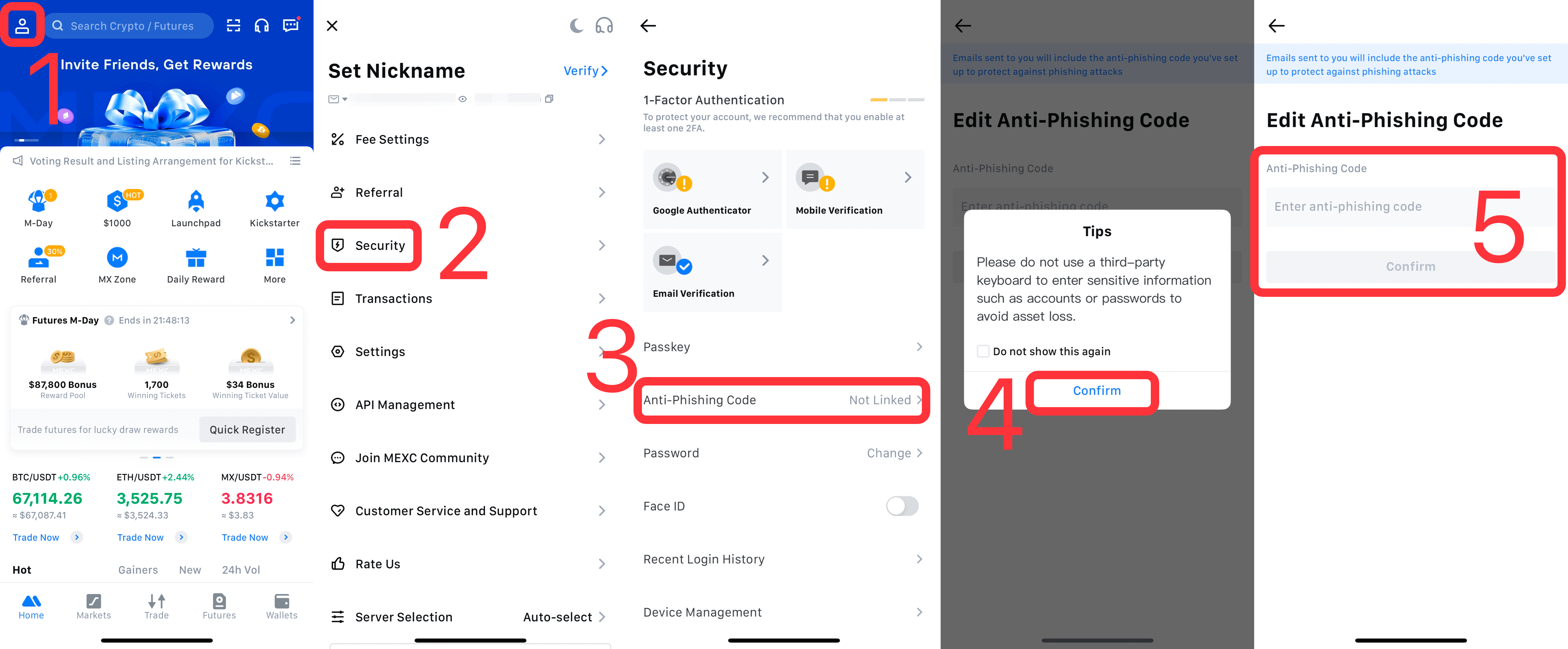
1) Open the MEXC App and log in. Tap your profile icon in the top-left corner.
2) Tap Security.
3) Select Anti-Phishing Code.
4) Read the on-screen pop-up, then tap Confirm.
5) Enter 1 to 6 alphaumeric characters as your anti-phishing code, then tap Confirm to complete the setup. Please avoid using any of your commonly used passwords as the anti-phishing code.
3. How to Change or Update Your Anti-Phishing Code
3.1 Web
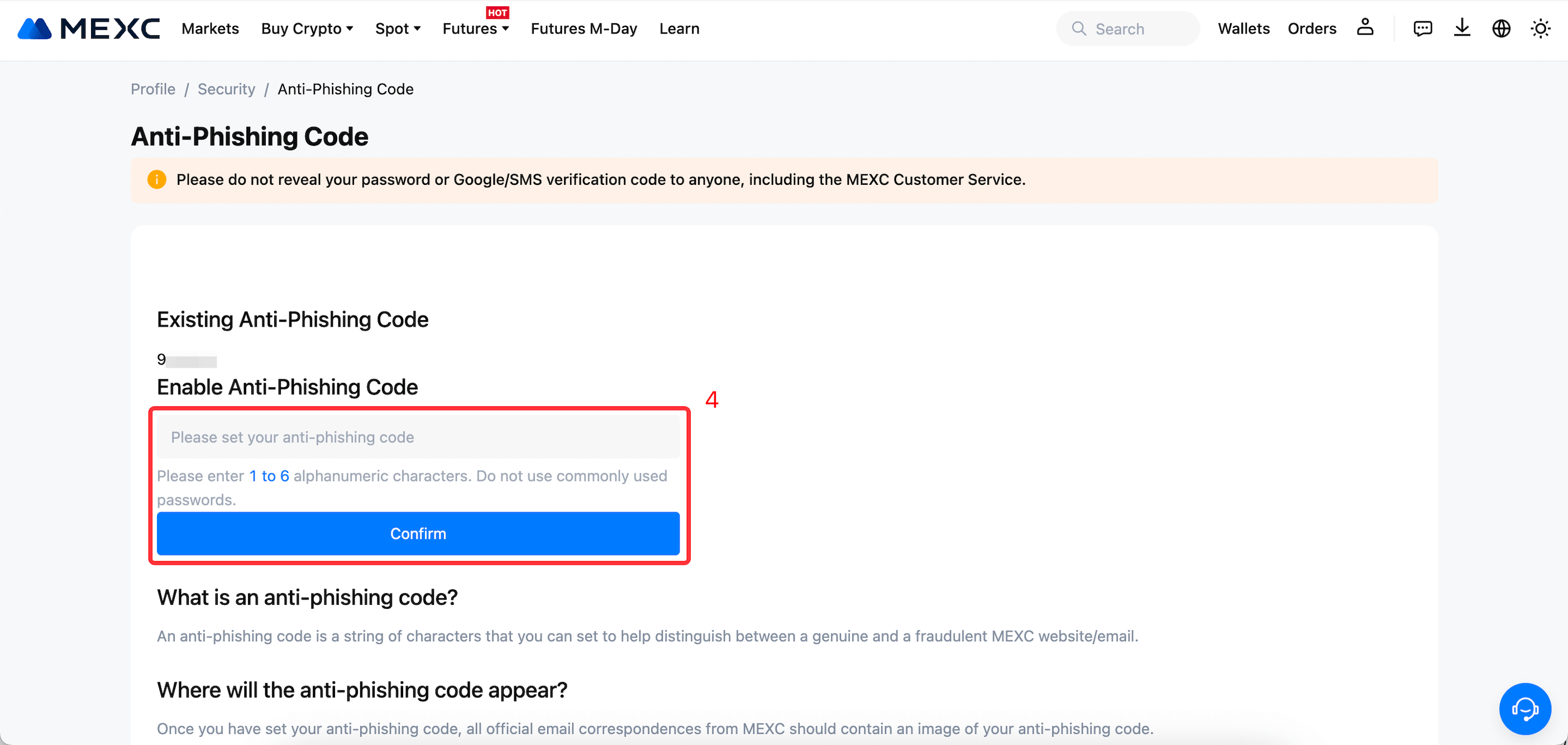
Go to the MEXC official website and log in to your account. Click your profile icon in the top-right corner and select Security.
On the Security page under Advanced Security settings, find Anti-Phishing Code and click Change on the right to modify your code.
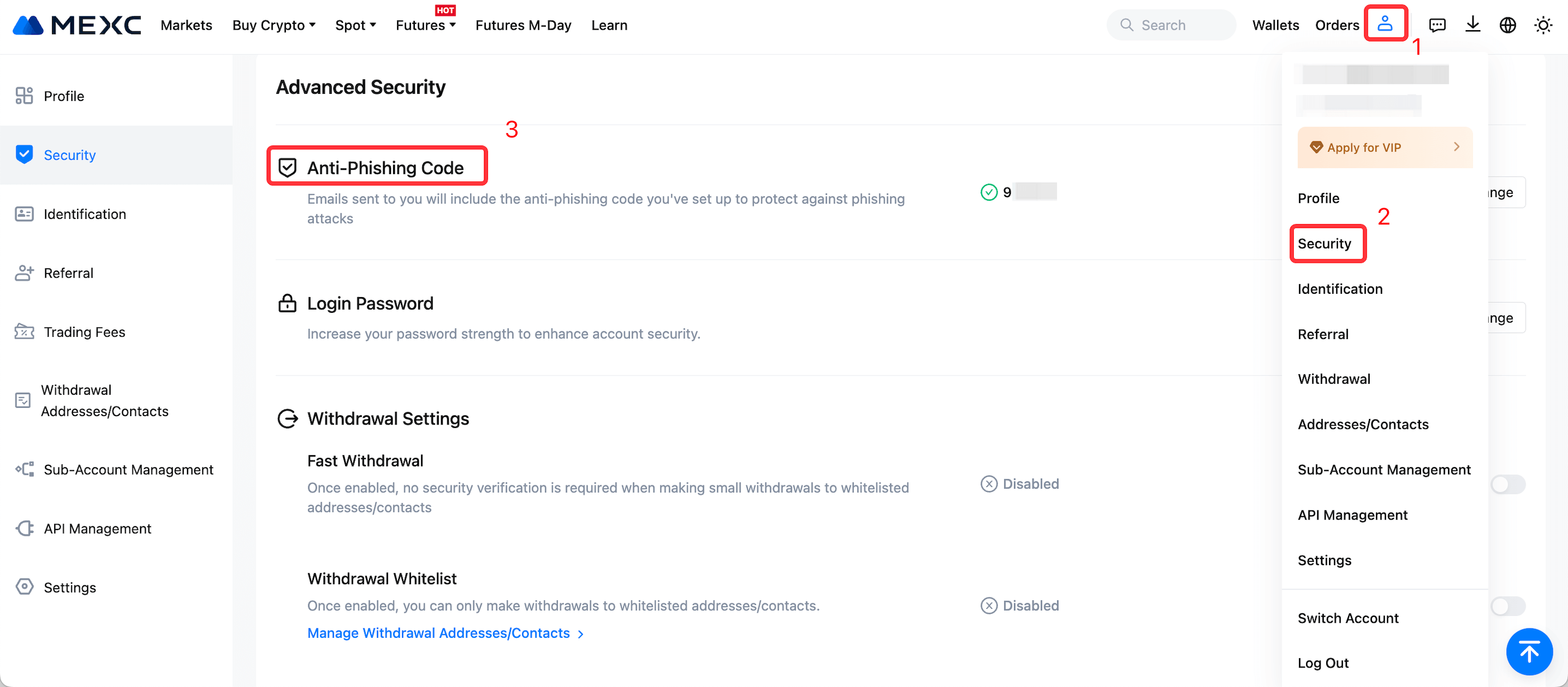
On the Anti-Phishing Code page, you can view your current anti-phishing code. Enter the new code you wish to set in the input field below, then click Confirm to complete the update.
3.2 App
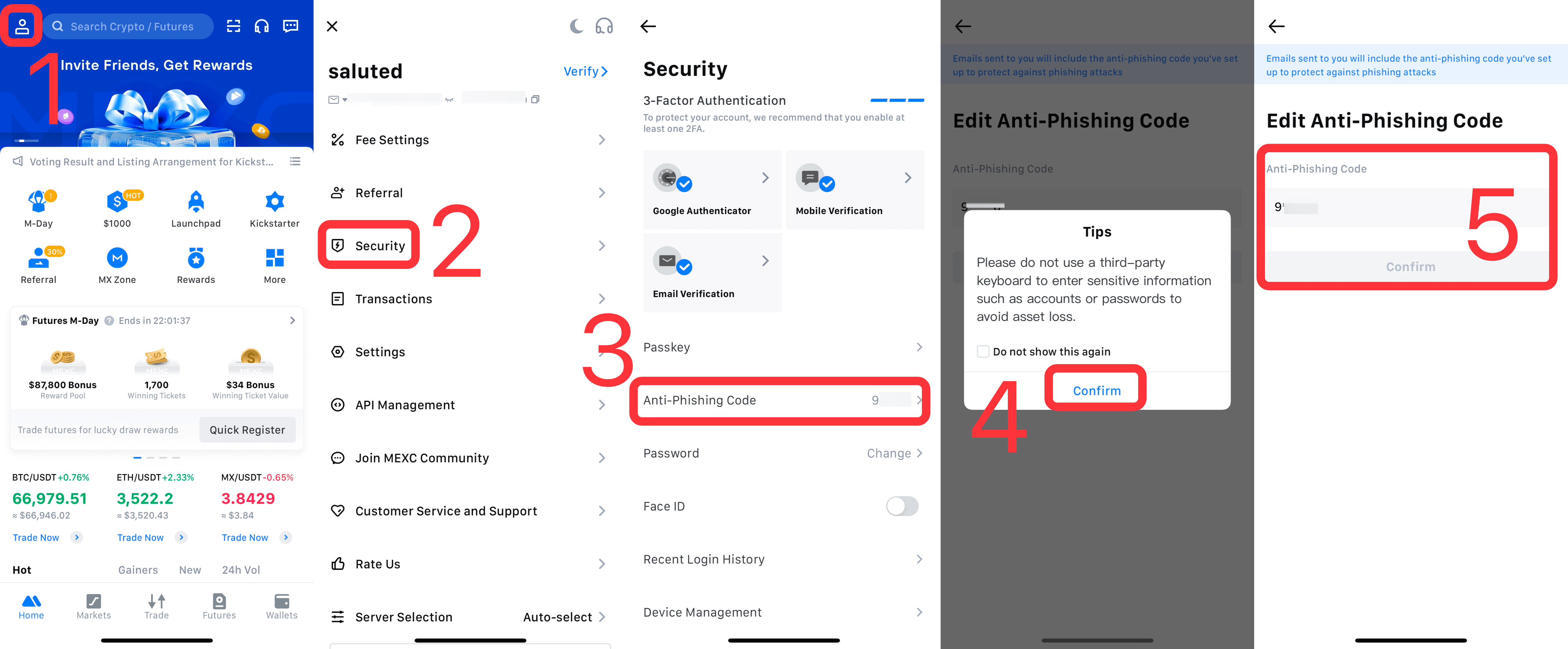
1) Open the MEXC App and log in. Tap your profile icon in the top-left corner.
2) Tap Security.
3) Select Anti-Phishing Code.
4) Read the on-screen pop-up, then tap Confirm.
5) Tap the anti-phishing code input field, enter the new code you want to set, and then tap Confirm to complete the update.
4. Anti-Phishing Code FAQ
4.1 What is the difference between an anti-phishing code and a login verification code?
An anti-phishing code is a fixed code set by you and remains valid long term. It is used specifically to verify whether emails claiming to be from MEXC are genuine. Login or withdrawal verification codes, on the other hand, are system-generated one-time codes that expire within a short period, usually within a few minutes, and are used to confirm your actions.
4.2 How can I use the anti-phishing code to identify phishing emails?
When you receive an email claiming to be from MEXC, first check whether the email content includes your anti-phishing code. If the code is missing or does not match the one you set, please remain alert, as the email is likely a phishing attempt impersonating MEXC.
4.3 What should I do if an email does not display my anti-phishing code or shows an incorrect one?
In most cases, this indicates a phishing email. Please do not click any links in the email and do not provide any personal information. If you need to verify the authenticity of the email, you may contact MEXC Customer Service for confirmation.
4.4 Is setting an anti-phishing code required?
Setting an anti-phishing code is not required. However, to enhance the security of your account, we strongly recommend enabling it. It is a simple yet highly effective security measure.
4.5 What should I do if I forget my anti-phishing code?
If you forget your anti-phishing code, you can log in to the MEXC website and view your current code in Securitysettings. If you believe your anti-phishing code may have been exposed, you can update it at any time.