Buy Crypto
Markets
Spot
FuturesBTC
Earn
Event Center
Rewards Hub
More
How to Configure the MEXC Referral Sign-Up Page: A Complete GuideHow to Configure the MEXC Referral Sign-Up Page: A Complete Guide
Category List
Cancel

How to Configure the MEXC Referral Sign-Up Page: A Complete Guide

Key Takeaways

  • The MEXC referral sign-up page is a dedicated landing page that allows affiliates to customize their avatar, nickname, and slogan.
  • Affiliates can configure a general referral page or customize the page for a specific referral code through the MEXC Affiliate Portal.
  • The avatar, nickname, and slogan are reviewed separately. AI reviews are completed within seconds, while manual reviews are completed within 24 hours on business days.
  • Content that violates the requirements for referral sign-up pages will be rejected.

1. What Is the MEXC Referral Sign-Up Page?


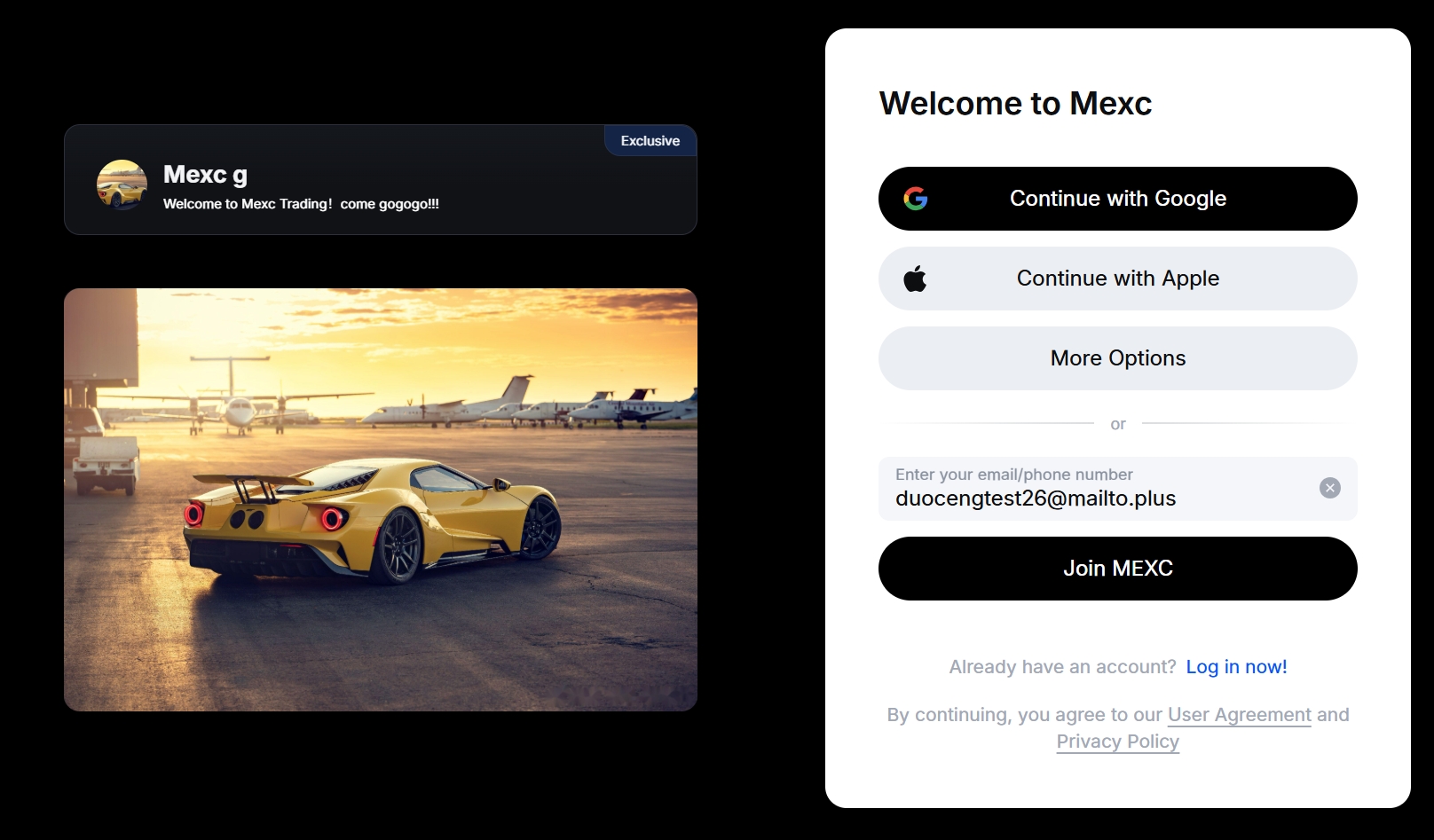
The referral sign-up page is a dedicated landing page provided by MEXC for affiliates. When an invited user opens an affiliate's referral link, this is the first page they will see.

Affiliates can customize the page with their avatar, nickname, and slogan. A personalized referral sign-up page helps invited users recognize the affiliate more easily, which may improve sign-up conversion and build trust and a stronger connection with invited users.

2. How to Configure the MEXC Referral Sign-Up Page


Go to MEXC Affiliate Portal → Referral Strategy → Referral Sign-Up Page

2.1 Access the Settings


Log in to the MEXC Affiliate Portal. Select Referral Strategy, followed by Referral Sign-Up Page, to open the settings page.


2.2 Configure the Referral Code


The referral sign-up page supports two configuration options:
  • General Referral Page: This applies the same page to all referral codes under your account.
  • Select Referral Code: This applies only to the selected referral code and takes priority over the general referral page.

Tip: Configure a general referral page first as the default, then create customized pages for selected referral codes to support different events or audiences.


2.3 Configure Basic Information


Select Update Settings to open the basic information settings. You can edit the following fields:

Avatar: how you support your community. Consider using the same avatar as your community or social media account to make it easier for users to recognize you. Only JPG and PNG images are supported. The image size cannot exceed 2 MB, and the dimensions must be at least 100 × 100 px. After uploading the image, use the cropping window to adjust how it will appear.

Nickname: Your masked UID is displayed by default. You can enter a nickname of up to 20 characters. Consider using the same name as your community or social media account so users can recognize you more easily. Do not use sensitive or prohibited terms.

Slogan: You can enter a customized slogan of up to 100 characters to encourage users to sign up. It may describe your trading focus or how you support your community. Do not use sensitive or prohibited terms.


2.4 Submit the Content and Check the Review Status


After clicking Submit Changes, the submission will appear under Review History. You can filter records by Referral Type and Review Status to check their progress.

If a submission is rejected, hover over the information icon to view the rejection reason and related details. Select the relevant record to view its submission history.

If a notice at the top of the page indicates that an update is required, select Filter to locate the records that require action.


2.5 View the Published Page


Once approved, your avatar, nickname, and slogan will appear at the top of the referral sign-up page.

The event section below the nickname and slogan can be customized. Contact your account manager for assistance.


3. Content Requirements for Referral Sign-Up Pages


To protect users and maintain platform security, MEXC applies clear content requirements to referral sign-up pages. Review your content carefully before submitting it. Content involving any of the following categories will be rejected:

Category
Examples
Sexual or nude content
Nude avatars, sexually explicit language, solicitation, or suggestive content
Violence or graphic content
Firearms, graphic imagery, threats, or similar content
Terrorism or extremism
Content promoting terrorism or extremist ideologies
Discrimination or hate speech
Discriminatory language based on race, gender, religion, nationality, or other protected characteristics
Crime or fraud
Gambling promotions, guaranteed returns, zero-risk claims, or similar content
Risks involving minors
Sexualization of minors or depictions of children in dangerous situations
Locally prohibited content
Content prohibited by applicable laws or regulations in a particular region
Financial misinformation or false promises
Guaranteed profits, get-rich-quick claims, insider signals, or similar statements
Attacks on competitors
Malicious or offensive statements targeting other platforms
External redirection
Telegram group links, WhatsApp numbers, external sign-up links, or similar contact details
Impersonation of MEXC
Claims of being an official MEXC representative or unauthorized use of the official MEXC logo

4. Referral Sign-Up Page FAQ


4.1 Why should I customize my referral sign-up page?


The default page displays a masked UID, a system-generated avatar, and standard copy.

After customization, invited users can recognize you more easily. This may improve sign-up conversion and strengthen user trust and connection.

4.2 What is the difference between a general referral page and a page configured for a specific referral code?


A general referral page applies to all referral codes under your account and is recommended as the default configuration.

A page configured for a specific referral code is more suitable for VIP communities, specific regions, or dedicated events. It takes priority over the general referral page.

4.3 How long does the review take?


  • Content approved or rejected directly through AI review will receive a result within seconds.
  • Content referred for manual review will be processed within 24 hours on business days.

4.4 What should I do if my submission is rejected?


  • Open on-site notifications to view the rejection category and recommended changes.
  • Go to MEXC Affiliate Portal → Referral Strategy → Referral Sign-Up Page and update the relevant field.
  • Select Submit Changes to submit the updated content for review.

4.5 Can I edit my nickname while my avatar is under review?


Yes. The avatar, nickname, and slogan are reviewed separately and do not affect one another.

However, a field cannot be edited while that same field is under review. You must wait for the review result before making further changes to it.

4.6 Can I upload my own banners or event images?


No. Page banners and event placements are managed by MEXC.

You can only configure your avatar, nickname, and slogan. For additional customization, contact your account manager for assistance.

4.7 I already have a dedicated referral page. How does it work with this feature?


If you already have a dedicated referral page, the new affiliate customization feature will not apply to your account because the existing dedicated page takes priority.

To switch to the new page, contact your account manager. Your existing dedicated referral page must be taken offline before the new configuration can take effect.

How to Configure the MEXC Referral Sign-Up Page: A Complete Guide

Key Takeaways

  • The MEXC referral sign-up page is a dedicated landing page that allows affiliates to customize their avatar, nickname, and slogan.
  • Affiliates can configure a general referral page or customize the page for a specific referral code through the MEXC Affiliate Portal.
  • The avatar, nickname, and slogan are reviewed separately. AI reviews are completed within seconds, while manual reviews are completed within 24 hours on business days.
  • Content that violates the requirements for referral sign-up pages will be rejected.

1. What Is the MEXC Referral Sign-Up Page?


The referral sign-up page is a dedicated landing page provided by MEXC for affiliates. When an invited user opens an affiliate's referral link, this is the first page they will see.

Affiliates can customize the page with their avatar, nickname, and slogan. A personalized referral sign-up page helps invited users recognize the affiliate more easily, which may improve sign-up conversion and build trust and a stronger connection with invited users.


2. How to Configure the MEXC Referral Sign-Up Page


Go to MEXC Affiliate Portal → Referral Strategy → Referral Sign-Up Page

2.1 Access the Settings


Log in to the MEXC Affiliate Portal. Select Referral Strategy, followed by Referral Sign-Up Page, to open the settings page.


2.2 Configure the Referral Code


The referral sign-up page supports two configuration options:
  • General Referral Page: This applies the same page to all referral codes under your account.
  • Select Referral Code: This applies only to the selected referral code and takes priority over the general referral page.

Tip: Configure a general referral page first as the default, then create customized pages for selected referral codes to support different events or audiences.


2.3 Configure Basic Information


Select Update Settings to open the basic information settings. You can edit the following fields:

Avatar: how you support your community. Consider using the same avatar as your community or social media account to make it easier for users to recognize you. Only JPG and PNG images are supported. The image size cannot exceed 2 MB, and the dimensions must be at least 100 × 100 px. After uploading the image, use the cropping window to adjust how it will appear.

Nickname: Your masked UID is displayed by default. You can enter a nickname of up to 20 characters. Consider using the same name as your community or social media account so users can recognize you more easily. Do not use sensitive or prohibited terms.

Slogan: You can enter a customized slogan of up to 100 characters to encourage users to sign up. It may describe your trading focus or how you support your community. Do not use sensitive or prohibited terms.


2.4 Submit the Content and Check the Review Status


After clicking Submit Changes, the submission will appear under Review History. You can filter records by Referral Type and Review Status to check their progress.

If a submission is rejected, hover over the information icon to view the rejection reason and related details. Select the relevant record to view its submission history.

If a notice at the top of the page indicates that an update is required, select Filter to locate the records that require action.


2.5 View the Published Page


Once approved, your avatar, nickname, and slogan will appear at the top of the referral sign-up page.

The event section below the nickname and slogan can be customized. Contact your account manager for assistance.


3. Content Requirements for Referral Sign-Up Pages


To protect users and maintain platform security, MEXC applies clear content requirements to referral sign-up pages. Review your content carefully before submitting it. Content involving any of the following categories will be rejected:

Category
Examples
Sexual or nude content
Nude avatars, sexually explicit language, solicitation, or suggestive content
Violence or graphic content
Firearms, graphic imagery, threats, or similar content
Terrorism or extremism
Content promoting terrorism or extremist ideologies
Discrimination or hate speech
Discriminatory language based on race, gender, religion, nationality, or other protected characteristics
Crime or fraud
Gambling promotions, guaranteed returns, zero-risk claims, or similar content
Risks involving minors
Sexualization of minors or depictions of children in dangerous situations
Locally prohibited content
Content prohibited by applicable laws or regulations in a particular region
Financial misinformation or false promises
Guaranteed profits, get-rich-quick claims, insider signals, or similar statements
Attacks on competitors
Malicious or offensive statements targeting other platforms
External redirection
Telegram group links, WhatsApp numbers, external sign-up links, or similar contact details
Impersonation of MEXC
Claims of being an official MEXC representative or unauthorized use of the official MEXC logo

4. Referral Sign-Up Page FAQ


4.1 Why should I customize my referral sign-up page?


The default page displays a masked UID, a system-generated avatar, and standard copy.

After customization, invited users can recognize you more easily. This may improve sign-up conversion and strengthen user trust and connection.

4.2 What is the difference between a general referral page and a page configured for a specific referral code?


A general referral page applies to all referral codes under your account and is recommended as the default configuration.

A page configured for a specific referral code is more suitable for VIP communities, specific regions, or dedicated events. It takes priority over the general referral page.

4.3 How long does the review take?


  • Content approved or rejected directly through AI review will receive a result within seconds.
  • Content referred for manual review will be processed within 24 hours on business days.

4.4 What should I do if my submission is rejected?


  • Open on-site notifications to view the rejection category and recommended changes.
  • Go to MEXC Affiliate Portal → Referral Strategy → Referral Sign-Up Page and update the relevant field.
  • Select Submit Changes to submit the updated content for review.

4.5 Can I edit my nickname while my avatar is under review?


Yes. The avatar, nickname, and slogan are reviewed separately and do not affect one another.

However, a field cannot be edited while that same field is under review. You must wait for the review result before making further changes to it.

4.6 Can I upload my own banners or event images?


No. Page banners and event placements are managed by MEXC.

You can only configure your avatar, nickname, and slogan. For additional customization, contact your account manager for assistance.

4.7 I already have a dedicated referral page. How does it work with this feature?


If you already have a dedicated referral page, the new affiliate customization feature will not apply to your account because the existing dedicated page takes priority.

To switch to the new page, contact your account manager. Your existing dedicated referral page must be taken offline before the new configuration can take effect.