Buy Crypto
Markets
Spot
FuturesBTC
Earn
Event Center
Rewards Hub
More
How to Install the MEXC App by Creating a New Hong Kong Apple AccountHow to Install the MEXC App by Creating a New Hong Kong Apple Account
Category List
Cancel

How to Install the MEXC App by Creating a New Hong Kong Apple Account

This guide explains how to create a new Hong Kong Apple Account and use it to download and install the MEXC app.

This method is recommended if you prefer not to change any settings on your current Apple Account or iCloud. Your existing Apple Account and iCloud data will remain unchanged.

Key points:
  • No Hong Kong phone number required: You can verify the account using your own Japanese (+81) phone number.
  • No credit card required: You can select None as the payment method.
  • Your current Apple Account and iCloud remain unchanged: Your photos, contacts, and purchased apps will not be deleted.

Alternatively, you can keep your current Apple Account and simply change its region to Hong Kong. This method can be completed directly in the App Store and is usually the easier option: How to Install the MEXC App by Changing Your App Store Region to Hong Kong (iPhone)

1. Before You Start


Prepare the following:
  • An email address that is not currently linked to any Apple Account. Gmail or other email providers are supported.

2. Installation Guide


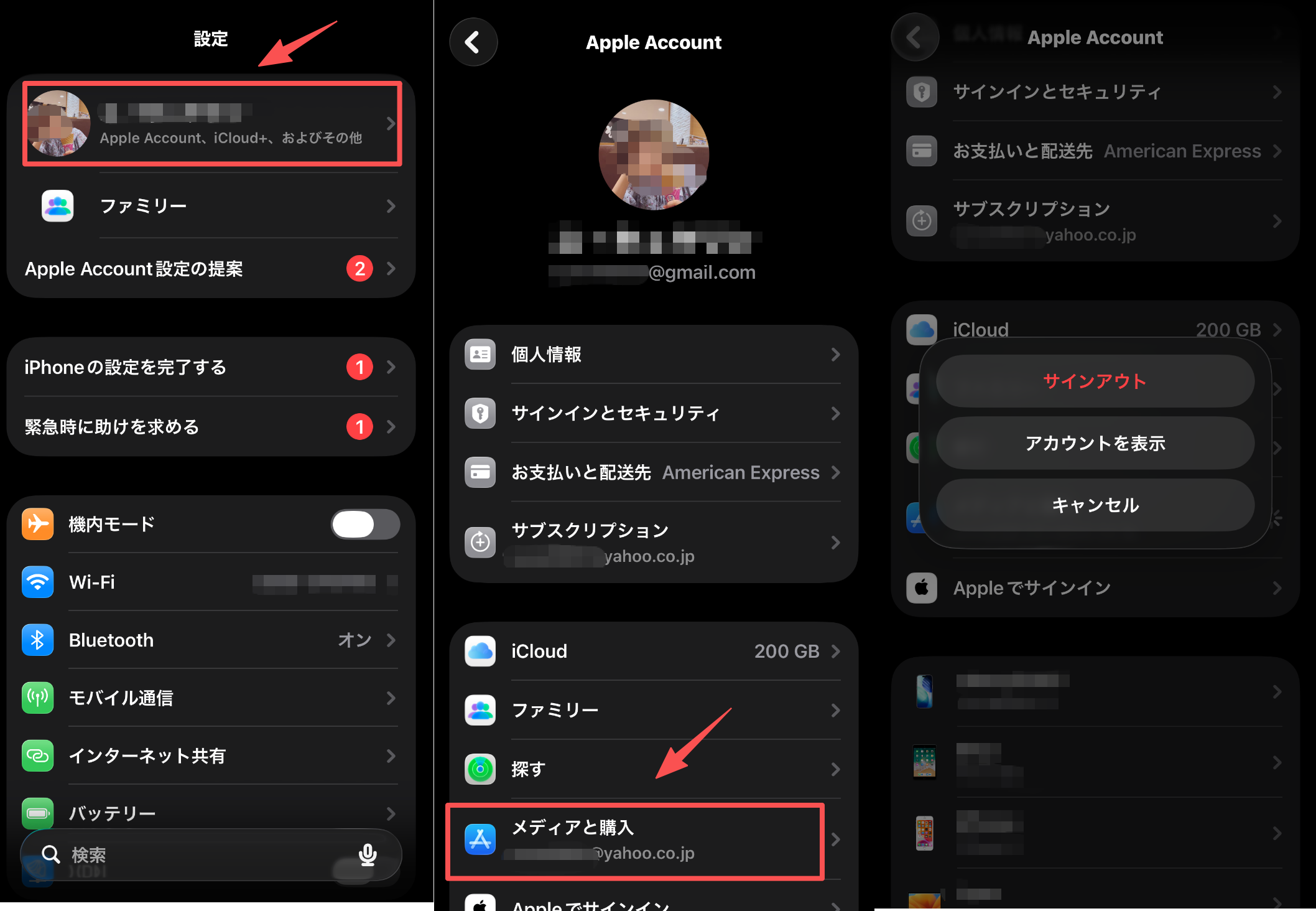
Step 1: Sign out of your App Store account


Go to Settings → your name at the top → Media & Purchases → Sign Out

This only signs you out of the App Store. Your iCloud account, including Photos, Contacts, and Find My, will remain signed in and will not be affected.

Step 2: Create a new Apple Account with the region set to Hong Kong


Open the App Store, tap the account icon in the top-right corner, and select Create New Apple Account (Apple ID has been renamed to Apple Account.)

Follow the on-screen instructions to enter your email address, password, date of birth, and select Hong Kong under Country or Region.

In most cases, you can select Hong Kong directly. If you are unable to do so, see FAQ 3.7.

If Create New Apple Account does not appear, sign out of iCloud as well and try again. Your photos and contacts will not be deleted, and you can sign back in with your original Apple Account afterward.

The availability of this option may vary depending on your device settings.


Step 3: Select None as the payment method


On the payment method page, select None. No payment will be charged.

After this step, the App Store interface will switch to Traditional Chinese. This is expected and means your region has been changed to Hong Kong.

For reference:
  • 街道 = Street address
  • 必填 = Required
  • 可選填 = Optional

For the billing address field (街道), enter a Hong Kong address. It does not need to be your own address. You can search for a hotel in Hong Kong on Google Maps and use the listed address.

If a postal code field appears, you can leave it blank because Hong Kong does not use postal codes.


Step 4: Verify your phone number


Enter your own Japanese phone number and complete SMS verification. A Hong Kong phone number is not required. Then verify your email address using the confirmation email sent by Apple.

Step 5: Sign in to the App Store with your Hong Kong Apple Account and download the MEXC app


Sign in to the App Store with the Hong Kong Apple Account you created, search for "MEXC", and download the app.

Since the App Store interface is displayed in Traditional Chinese, the download button will appear as 取得, which means "Get".

You can log in with your existing MEXC account immediately after installation.


If you encounter any issues during installation, visit the MEXC Help Center or contact the official MEXC community for support.

3. FAQ


3.1 Will my Japanese apps and data disappear after creating a Hong Kong Apple Account?


No. Your new Apple Account is separate from your iCloud account. Your existing apps, photos, contacts, and other data will remain unchanged.

The only difference is that App Store downloads will be associated with the Hong Kong store.

3.2 Does it cost anything?


No. You can create the account with the payment method set to None, and no charges will occur.

3.3 Do I need to create a new MEXC account?


No. Simply log in with your existing MEXC account.

3.4 Do I need a Hong Kong phone number or credit card?


No. You can verify the account using your own Japanese phone number, and a credit card is not required.

3.5 How do I update the MEXC app?


Update the app while signed in to the App Store with your Hong Kong Apple Account.

3.6 How do I switch back to my original Japanese Apple Account?


Go to Settings → your name at the top → Media & Purchases → Sign Out

Then sign in with your original Japanese Apple Account. The MEXC app you downloaded will continue to work normally.

3.7 What if I cannot select Hong Kong as the region?


Please wait a while and try again.

If you still cannot select Hong Kong, you can keep your current Apple Account and change only its region instead: How to Install the MEXC App by Changing Your App Store Region to Hong Kong (iPhone)

If Create New Apple Account does not appear, try signing out of iCloud and repeating the process.

How to Install the MEXC App by Creating a New Hong Kong Apple Account

This guide explains how to create a new Hong Kong Apple Account and use it to download and install the MEXC app.

This method is recommended if you prefer not to change any settings on your current Apple Account or iCloud. Your existing Apple Account and iCloud data will remain unchanged.

Key points:
  • No Hong Kong phone number required: You can verify the account using your own Japanese (+81) phone number.
  • No credit card required: You can select None as the payment method.
  • Your current Apple Account and iCloud remain unchanged: Your photos, contacts, and purchased apps will not be deleted.

Alternatively, you can keep your current Apple Account and simply change its region to Hong Kong. This method can be completed directly in the App Store and is usually the easier option: How to Install the MEXC App by Changing Your App Store Region to Hong Kong (iPhone)

1. Before You Start


Prepare the following:
  • An email address that is not currently linked to any Apple Account. Gmail or other email providers are supported.

2. Installation Guide


Step 1: Sign out of your App Store account


Go to Settings → your name at the top → Media & Purchases → Sign Out

This only signs you out of the App Store. Your iCloud account, including Photos, Contacts, and Find My, will remain signed in and will not be affected.


Step 2: Create a new Apple Account with the region set to Hong Kong


Open the App Store, tap the account icon in the top-right corner, and select Create New Apple Account (Apple ID has been renamed to Apple Account.)

Follow the on-screen instructions to enter your email address, password, date of birth, and select Hong Kong under Country or Region.

In most cases, you can select Hong Kong directly. If you are unable to do so, see FAQ 3.7.

If Create New Apple Account does not appear, sign out of iCloud as well and try again. Your photos and contacts will not be deleted, and you can sign back in with your original Apple Account afterward.

The availability of this option may vary depending on your device settings.


Step 3: Select None as the payment method


On the payment method page, select None. No payment will be charged.

After this step, the App Store interface will switch to Traditional Chinese. This is expected and means your region has been changed to Hong Kong.

For reference:
  • 街道 = Street address
  • 必填 = Required
  • 可選填 = Optional

For the billing address field (街道), enter a Hong Kong address. It does not need to be your own address. You can search for a hotel in Hong Kong on Google Maps and use the listed address.

If a postal code field appears, you can leave it blank because Hong Kong does not use postal codes.


Step 4: Verify your phone number


Enter your own Japanese phone number and complete SMS verification. A Hong Kong phone number is not required. Then verify your email address using the confirmation email sent by Apple.

Step 5: Sign in to the App Store with your Hong Kong Apple Account and download the MEXC app


Sign in to the App Store with the Hong Kong Apple Account you created, search for "MEXC", and download the app.

Since the App Store interface is displayed in Traditional Chinese, the download button will appear as 取得, which means "Get".

You can log in with your existing MEXC account immediately after installation.


If you encounter any issues during installation, visit the MEXC Help Center or contact the official MEXC community for support.

3. FAQ


3.1 Will my Japanese apps and data disappear after creating a Hong Kong Apple Account?


No. Your new Apple Account is separate from your iCloud account. Your existing apps, photos, contacts, and other data will remain unchanged.

The only difference is that App Store downloads will be associated with the Hong Kong store.

3.2 Does it cost anything?


No. You can create the account with the payment method set to None, and no charges will occur.

3.3 Do I need to create a new MEXC account?


No. Simply log in with your existing MEXC account.

3.4 Do I need a Hong Kong phone number or credit card?


No. You can verify the account using your own Japanese phone number, and a credit card is not required.

3.5 How do I update the MEXC app?


Update the app while signed in to the App Store with your Hong Kong Apple Account.

3.6 How do I switch back to my original Japanese Apple Account?


Go to Settings → your name at the top → Media & Purchases → Sign Out

Then sign in with your original Japanese Apple Account. The MEXC app you downloaded will continue to work normally.

3.7 What if I cannot select Hong Kong as the region?


Please wait a while and try again.

If you still cannot select Hong Kong, you can keep your current Apple Account and change only its region instead: How to Install the MEXC App by Changing Your App Store Region to Hong Kong (iPhone)

If Create New Apple Account does not appear, try signing out of iCloud and repeating the process.