

How to Start CFD Trading on MEXC (Web)
1. What is MEXC CFD?
Contract for Difference (CFD) is a derivative product that allows traders to invest in the price movements of various financial instruments, including metals, indices, commodities, and forex without actually holding the underlying asset. You can trade popular global assetsin one place on MEXC, no traditional brokerage account required.
2. How to Start CFD Trading on MEXC
2.1 Navigating to MEXC CFD
MEXC provides several access points. You can access the CFD trading page through any of the following methods:
1)Home:Open MEXC official website → Hot → CFD
2)Markets: Open MEXC official website → Markets → CFD
3)Futures Page: Open MEXC official website → Futures → CFD
Image missing
2.2 Create a MEXC CFD Account
To begin trading CFD on MEXC, you need to create a CFD account.
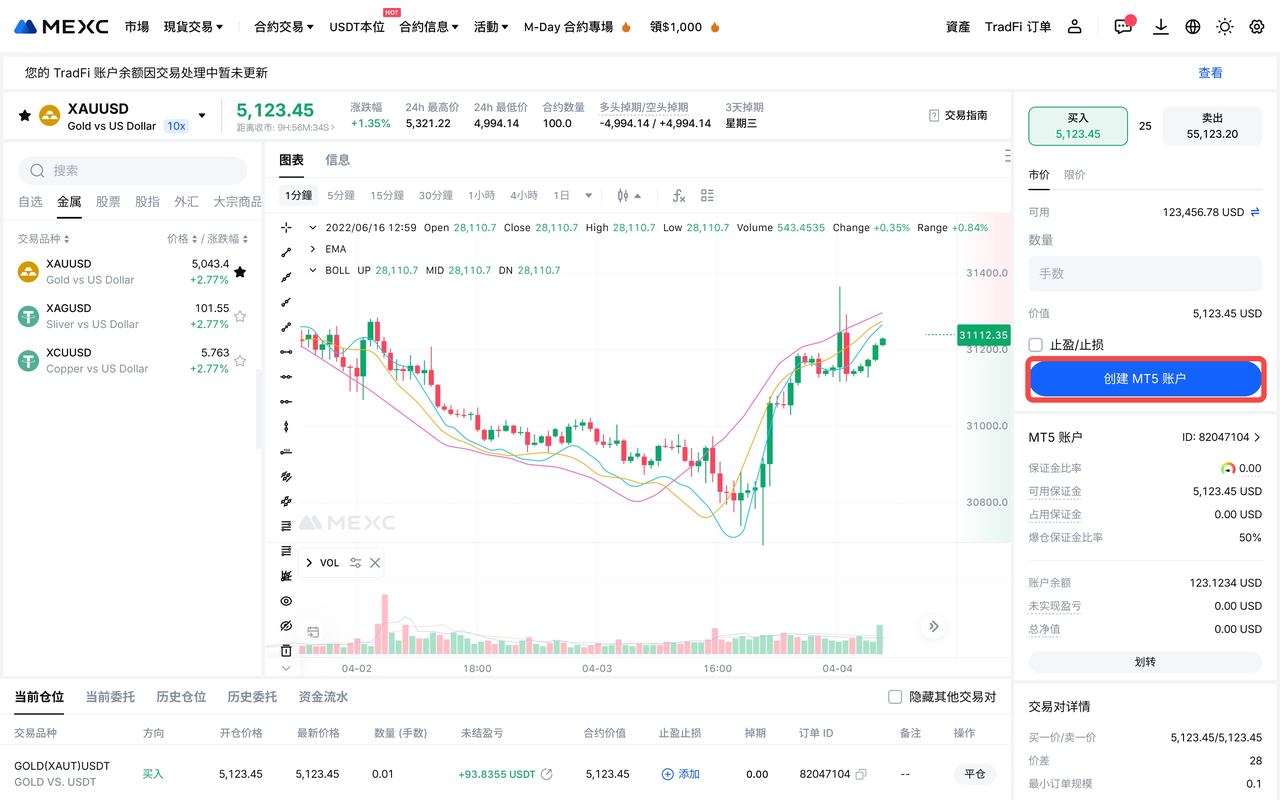
After entering the CFD trading page, click Create CFD Account. Read and agree to the Terms of Service, then click Next to complete the account creation.
Please note:
1)You must complete Primary KYC Verification before starting CFD trading.
2)Sub-accounts do not support the opening of CFD accounts.
3)Due to jurisdictional regulatory requirements, CFD trading services are restricted in certain regions. Please refer to the product page for real-time availability in your location.
After the account is successfully created, you can choose to trade directly within the MEXC platform or log in to the MT5 trading platform using your account, server, and password information.
2.3 Transfer Funds to MEXC CFD Account
After creating your account, you need to transfer funds from your Spot account to your CFD account to start trading.
How to Transfer Funds
Once the account is created, click Transfer on the page to open the transfer pop-up. Select to transfer USDT from your Spot account to your CFD account, enter the amount, and confirm. The system will automatically convert USDT to USDx at a 1:1 ratio for trading settlement.
You can also transfer via the transfer button on the order placement panel or by selecting the CFD account on the assets page.
How to Check Account Balance
In the order placement area of the CFD trading page, you can view account balance details, including Free Margin, Used Margin, Account Balance, Unrealized PNL and more.
How to Check Transaction History
In the order list below the CFD trading page, click Transaction History to view all records of deposits, withdrawals, and fund movements for the account.
2.4 Select Trading Instrument
After selecting a symbol, you can view its detailed information, including contract size (the amount of the underlying asset corresponding to 1 lot) and swap (daily financing cost or credit for from holding positions overnight).
2.5 Place an Order
MEXC CFD supports two order types: Market and Limit. You can choose the appropriate order type based on your actual needs.
2.6 Manage Orders and Positions
After placing an order successfully, you can view and manage all your orders in the order list at the bottom of the CFD trading page:
- Open Positions: Displays all your current positions, where you can close positions or modify TP/SL.
- Pending Orders: Displays all limit orders that have not yet been executed; you can cancel orders here.
- Position History: Records closed trades, allowing you to review your trading performance.
- Order History: Saves all historical order records.
- Transaction History: Shows detailed records of fund movements in your account.
Please note: CFD position management differs from MEXC Futures Trading. In CFD, each filled order is displayed as an independent position and will not be automatically merged. This allows you to manage each position more flexibly and supports holding both long and short positions for the same instrument simultaneously for hedging purposes.
3. How to View and Manage CFD Account Information
MEXC provides comprehensive account management features, allowing you to view and modify your account settings at any time.
3.1 View CFD Account Information
In the order placement area of the CFD trading page, click your CFD Account ID to open the account details window, where you can view your account ID, server information and password.
3.2 Reset CFD Account Password
Click Reset within the account details pop-up to modify your password.
The CFD account provides two types of passwords: the Master Password is used for logging in and trading, while the Investor Password allows you to view account information without the ability to trade. You can reset these two passwords separately based on your needs.
4. Important Reminders
Before you start CFD trading, please make sure to understand the following points:
- Trading Hours: Traditional financial products have fixed trading sessions and close on weekends and holidays, which is different from the 24/7 trading of cryptocurrencies.
- Leverage Risk: CFD uses a fixed leverage mechanism (up to 500x, which cannot be adjusted by the user). While this amplifies potential profits, it also significantly amplifies risk. Please use cautiously based on your own risk tolerance.
- Margin Management: When the margin level drops to 50%, the system will trigger forced liquidation. Please monitor your account margin level at all times.
- Overnight Fees: Holding positions overnight will generate swap fees, which are charged daily at 20:59 (UTC). As markets are closed on weekends, a triple swap fee is charged once a week. You can check the specific charging date in the trading information.