Buy Crypto
Markets
Spot
FuturesBTC
Earn
Event Center
Rewards Hub
More
How to Use MEXC on the Web Without Installing the AppHow to Use MEXC on the Web Without Installing the App
Category List
Cancel

How to Use MEXC on the Web Without Installing the App

This guide explains how to access MEXC through a browser on your smartphone or computer without installing the app.

If you cannot download the app, you can continue using MEXC through the web version. Add a shortcut to your home screen for quick access and an app-like experience. Your existing MEXC account can be used without any changes.

1. Step-by-Step Guide


Step 1: Open the official MEXC website in your browser


Open the official MEXC website in Safari (iPhone) or Chrome (Android), and log in with your existing MEXC account.
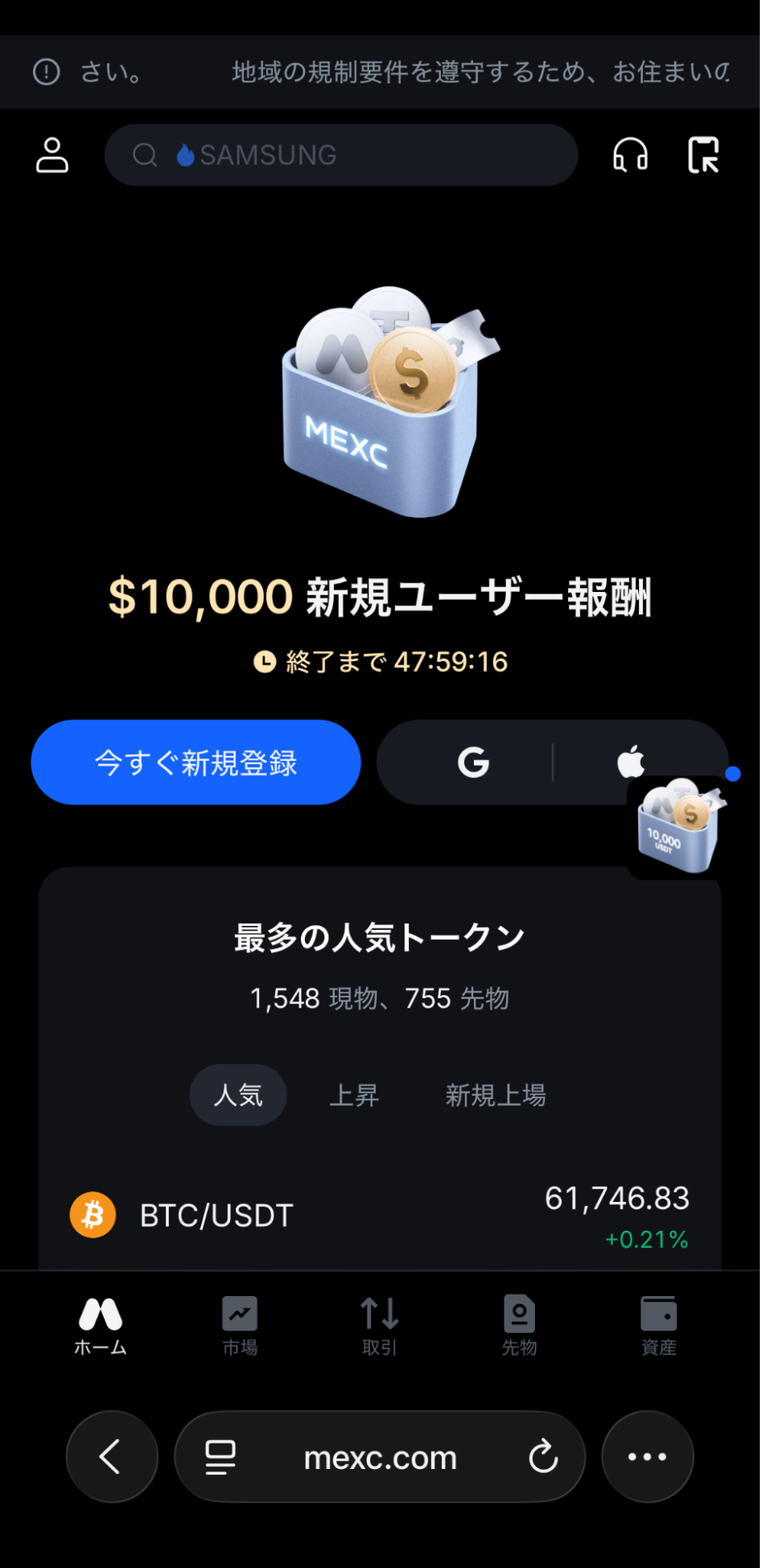

Step 2: Add MEXC to your home screen


iPhone (Safari): Tap Share, select Add to Home Screen, then tap Add in the top-right corner. Depending on your iOS version, Add to Home Screen may also appear directly in the Share menu.

Android (Chrome): Tap the menu icon in the top-right corner (⋮) → Add to Home Screen


Step 3: Open MEXC from your home screen


Tap the newly added MEXC. It will launch in a way similar to an app.


If you encounter any issues during installation, visit the MEXC Help Center or contact the official MEXC community for support.

2. FAQ


2.1 Can I use the web version for the same features as the app?


The web version supports the main features, including trading, deposits and withdrawals, and asset management.

Some app-specific features, such as push notifications, may not be available. If you install the app later, you can continue using the same MEXC account.

2.2 Do I need to create a new MEXC account?


No. Simply log in with your existing MEXC account.

2.3 I deleted the icon from my home screen. What should I do?


You can add it again at any time by following the same steps:
Open the official MEXC website in your browser → Add to Home Screen

2.4 What if I want to install the app later?


You can install the app at any time. Follow the guide for your device: Complete Guide to Downloading and Updating the MEXC App (iPhone / Android / Web)

How to Use MEXC on the Web Without Installing the App

This guide explains how to access MEXC through a browser on your smartphone or computer without installing the app.

If you cannot download the app, you can continue using MEXC through the web version. Add a shortcut to your home screen for quick access and an app-like experience. Your existing MEXC account can be used without any changes.

1. Step-by-Step Guide


Step 1: Open the official MEXC website in your browser


Open the official MEXC website in Safari (iPhone) or Chrome (Android), and log in with your existing MEXC account.


Step 2: Add MEXC to your home screen


iPhone (Safari): Tap Share, select Add to Home Screen, then tap Add in the top-right corner. Depending on your iOS version, Add to Home Screen may also appear directly in the Share menu.

Android (Chrome): Tap the menu icon in the top-right corner (⋮) → Add to Home Screen


Step 3: Open MEXC from your home screen


Tap the newly added MEXC. It will launch in a way similar to an app.


If you encounter any issues during installation, visit the MEXC Help Center or contact the official MEXC community for support.

2. FAQ


2.1 Can I use the web version for the same features as the app?


The web version supports the main features, including trading, deposits and withdrawals, and asset management.

Some app-specific features, such as push notifications, may not be available. If you install the app later, you can continue using the same MEXC account.

2.2 Do I need to create a new MEXC account?


No. Simply log in with your existing MEXC account.

2.3 I deleted the icon from my home screen. What should I do?


You can add it again at any time by following the same steps:
Open the official MEXC website in your browser → Add to Home Screen

2.4 What if I want to install the app later?


You can install the app at any time. Follow the guide for your device: Complete Guide to Downloading and Updating the MEXC App (iPhone / Android / Web)